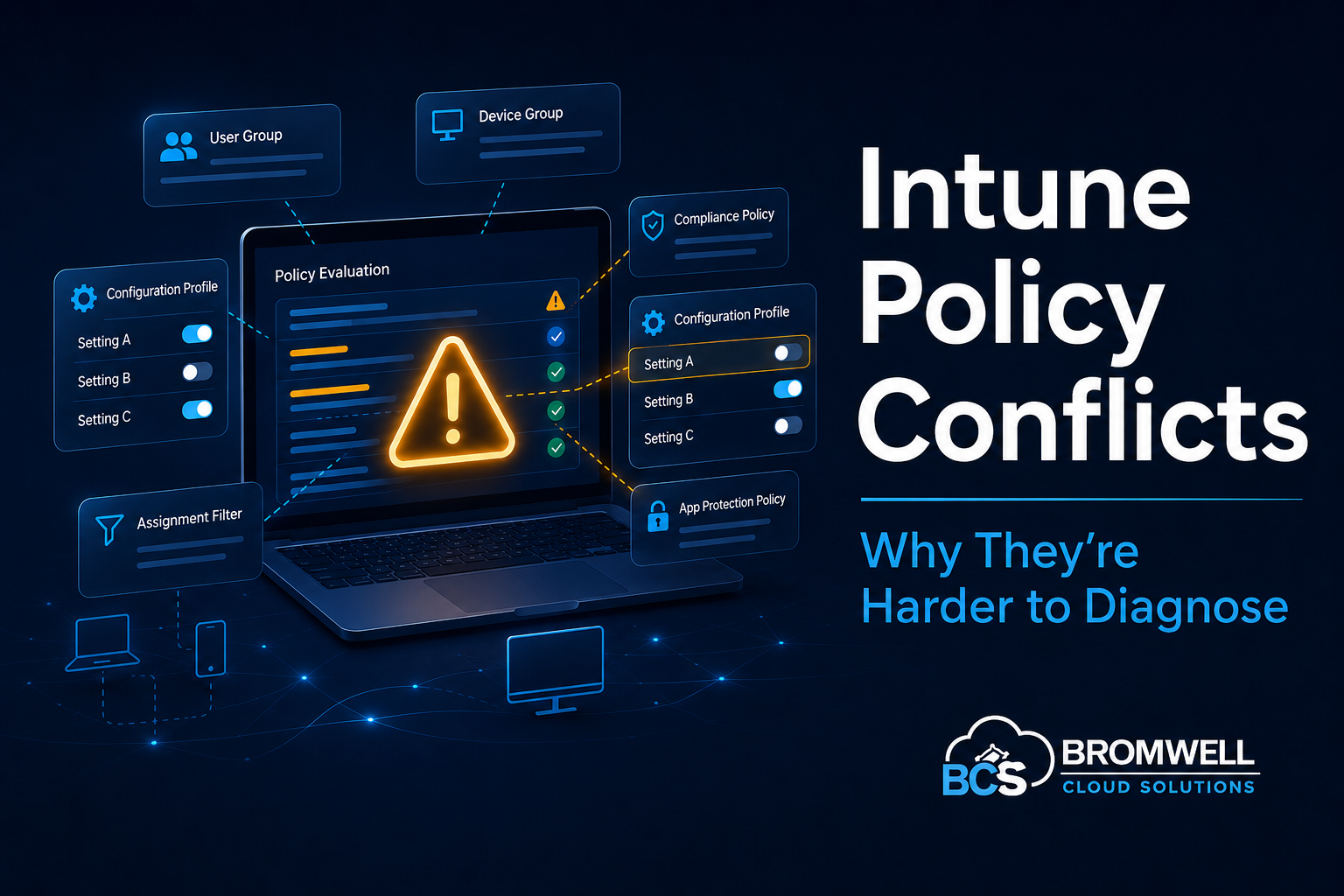
Intune policy conflicts have a reputation for being straightforward.
Two policies configure the same setting, Intune reports a conflict, and you determine which assignment needs to change.
Simple, right?
In practice, it is rarely that clean.
The conflict displayed in the Intune admin center may only be the final symptom. The actual cause could involve overlapping groups, user and device assignments, exclusions, assignment filters, security baselines, endpoint security policies, configuration profiles, or reporting that has not completely caught up with a recent change.
After working through these issues in large and complex environments, I have found that troubleshooting an Intune conflict is less about finding the red status indicator and more about reconstructing the complete assignment path that brought the setting to the device.
Why the Conflict Status Is Only Part of the Story
A conflict generally means that Intune has received competing configuration values for the same setting.
That sounds helpful, but it does not immediately tell you the complete story.
The affected device might be receiving settings from several different areas of Intune, including:
- Settings catalog policies
- Administrative Templates
- Endpoint security policies
- Security baselines
- Compliance policies
- Update policies
- Custom CSP or OMA-URI profiles
- Applications that configure local settings
- PowerShell scripts or remediations
- Existing Group Policy
Microsoft provides device configuration reports that can help identify policies and settings reporting conflict or error states. The challenge is that identifying the visible conflict is often only the beginning of the investigation.
A setting can appear in more than one policy type, and the policy names may not make the overlap obvious.
That is why starting with the setting itself is usually more effective than starting with the name of the policy.
Overlapping Group Assignments
One of the most common causes of Intune policy conflicts is overlapping group membership.
A device might belong to:
- A global deployment group
- A department group
- A hardware model group
- A security remediation group
- A pilot group
- A Windows version group
- A temporary exception group
Each individual assignment may make sense when viewed by itself. The problem appears when two or more assignments configure the same setting differently.
This is especially easy to create in mature environments where policies have been added over several years by different administrators or engineering teams.
Microsoft Intune uses Microsoft Entra security groups to organize and target users and devices. Microsoft also recommends reusing groups where possible and avoiding unnecessary custom versions of the built-in All users and All devices groups.
Before changing a policy, determine every group through which the affected device or user receives it.
Do not stop after finding the first matching group.
User and Device Targeting Can Collide
Intune supports assigning configuration profiles and policies to both user groups and device groups.
That flexibility is useful, but it can also make troubleshooting more complicated.
Consider a device that receives one policy because of its device group membership and another policy because of the signed-in user’s group membership.
Both policies can reach the same endpoint through completely different assignment paths.
This creates questions such as:
- Is the policy intended to follow the user?
- Is the setting intended to remain with the device?
- What happens when another user signs in?
- Is this a shared device?
- Does the setting apply in the device context or user context?
- Is an exclusion targeting the same object type as the inclusion?
A user-based inclusion and a device-based exclusion do not necessarily behave like two sides of the same assignment decision. The inclusion and exclusion strategy should be designed around consistent targeting types whenever possible.
My general approach is:
- Use device groups for settings that should remain with the endpoint.
- Use user groups for settings that should follow the user.
- Avoid mixing targeting types for the same setting unless the behavior has been intentionally designed and tested.
The goal is not to declare that one targeting method is always better. The goal is to make the assignment path predictable.
Exclusions Do Not Always Mean What You Expect
Exclusions are often treated as a universal override.
An administrator sees that a device has been added to an excluded group and reasonably expects that the policy can no longer reach it.
The actual result depends on how the policy was assigned and whether the included and excluded assignments target users or devices.
For example, excluding a device group does not necessarily cancel a policy that reaches the endpoint through an included user group.
Exclusions should be evaluated as part of the complete assignment design, not as an isolated emergency switch.
When troubleshooting an exclusion, verify:
- Whether the inclusion targets users or devices.
- Whether the exclusion targets users or devices.
- Whether the affected endpoint is receiving the policy through another assignment.
- Whether an assignment filter is also being evaluated.
- Whether the device has checked in since the assignment changed.
- Whether the report is showing current or historical information.
Microsoft notes that devices in excluded groups may not appear in some workload status reports, which can create another source of confusion during troubleshooting.
An exclusion can be configured correctly while the report you are reviewing still does not provide the complete picture you expected.
Assignment Filters Add Another Evaluation Layer
Assignment filters are extremely useful because they allow policies and applications to be narrowed using device properties.
A policy can be assigned to a broad group while a filter determines which devices within that group are actually included or excluded.
Microsoft states that assignment filters are evaluated when a device enrolls, checks in, or when the policy is otherwise reevaluated.
This means a troubleshooting review must consider both:
- Group membership
- Filter evaluation
A device can be a valid member of the assigned group and still not receive the policy because it failed an include filter or matched an exclude filter.
Filters can evaluate properties such as:
- Operating system version
- Manufacturer
- Device model
- Ownership
- Enrollment profile
- Device name
- Management type
Microsoft provides filter evaluation reporting that can help determine whether an endpoint was filtered in or out of an assignment.
When filters are involved, never assume group membership alone proves that a policy should apply.
The Same Setting Can Come From Different Policy Types
This is where Intune conflict troubleshooting becomes particularly frustrating.
The two competing settings may not exist in two configuration profiles sitting next to each other in the same section of the portal.
One setting could come from a Settings Catalog profile while another comes from:
- A security baseline
- An endpoint security policy
- An Administrative Template
- A custom CSP
- A Windows update policy
- An application configuration
- An older profile that was never retired
The names may look completely unrelated even though the underlying configuration service provider setting is the same.
This is why searching only for policies with similar names is not enough.
Start with the exact setting reporting the conflict, and then identify every Intune workload capable of configuring it.
Microsoft recommends using device configuration reporting to identify the profiles and policies contributing to conflict or error states, including conflicts involving security baselines and endpoint security policies.
Reporting Delays Complicate Troubleshooting
Intune is a cloud management platform. Policy assignments, group membership changes, filter evaluations, device check-ins, and reporting updates do not always occur simultaneously.
You can make the correct change and still see the previous status for a period of time.
This can lead to a familiar troubleshooting sequence:
- An assignment is changed.
- The device is synchronized.
- The conflict remains visible.
- Another change is made.
- Reporting finally updates.
- It becomes unclear which change actually resolved the problem.
To avoid this, document each change and allow the affected endpoint to complete a meaningful synchronization and reevaluation cycle before introducing another variable.
Also confirm:
- The device is online.
- The device has recently checked in.
- The expected user has signed in.
- Group membership is current.
- The policy was not just modified.
- The report timestamp reflects the latest check-in.
Troubleshooting becomes much harder when multiple changes are made faster than the platform can evaluate and report them.
A Practical Troubleshooting Process
Here is the process I use when investigating a policy conflict.
1. Identify the exact setting
Do not begin with the overall profile status.
Find the individual setting reporting the conflict and record:
- Setting name
- Reported value
- Policy name
- Policy type
- Assignment
- Last reported time
2. Review the affected device
Open the affected device in the Intune admin center and review its device configuration information.
Look for every profile reporting:
- Conflict
- Error
- Pending
- Not applicable
- Success
A profile reporting success can still be relevant if it configures a setting also managed elsewhere.
3. Identify every source of the setting
Search across:
- Configuration profiles
- Endpoint security
- Security baselines
- Update policies
- Compliance policies
- Scripts
- Remediations
- Application deployment logic
Do not assume the conflict exists only between two profiles of the same type.
4. Map every assignment
For each relevant policy, document:
- Included groups
- Excluded groups
- Assignment filters
- User targeting
- Device targeting
- All users assignments
- All devices assignments
5. Check group membership
Review both direct and inherited group membership for:
- The device
- The primary user
- The currently signed-in user
Pay particular attention to pilot, exception, remediation, and hardware-specific groups.
6. Evaluate filters
Confirm whether the device matched the expected include or exclude filter.
Do not rely on assumptions based on the device model, name, or operating system. Review the actual filter evaluation result.
7. Check for management outside Intune
Determine whether the same setting is also controlled by:
- Active Directory Group Policy
- Local policy
- Configuration Manager
- Provisioning packages
- Security software
- Application installers
- PowerShell scripts
- Registry modifications
Not every conflicting value originates from a visible Intune configuration profile.
8. Change one variable at a time
Remove or modify one conflicting assignment, synchronize the endpoint, and document the time of the change.
Avoid changing several assignments simultaneously unless the business impact requires immediate remediation.
9. Confirm the effective result
After the device checks in, verify:
- The conflict is cleared.
- The intended value is applied.
- The device remains compliant.
- No replacement conflict was created.
- The change did not affect a broader population unexpectedly.
10. Document the root cause
The final documentation should explain more than which policy was removed.
Record:
- Why both policies reached the device
- Which assignments overlapped
- Why the settings differed
- How the issue was corrected
- What design change will prevent recurrence
Preventing Conflicts Before They Happen
The best conflict is the one that never reaches production.
A few design practices can significantly reduce assignment confusion:
- Establish clear policy ownership.
- Use consistent naming standards.
- Document whether each policy targets users or devices.
- Avoid configuring the same setting across multiple policy types.
- Use deployment rings for controlled changes.
- Limit permanent exception groups.
- Periodically review overlapping assignments.
- Retire obsolete profiles instead of leaving them unassigned indefinitely.
- Test assignment filters before broad deployment.
- Document the intended source of authority for important settings.
Microsoft recommends checking for potential assignment failures and policy conflicts as part of deployment monitoring.
In larger environments, conflict prevention should be treated as an architecture and governance responsibility, not only as an operational troubleshooting task.
Final Thoughts
Intune policy conflicts are rarely caused by one obvious mistake.
More often, they result from several technically valid assignments interacting in a way that was not visible when each policy was created.
The most reliable troubleshooting method is to stop treating the conflict as an isolated status and instead map every policy, assignment, group, filter, exclusion, and management method that can affect the endpoint.
Once you reconstruct that complete path, the conflict usually becomes much easier to explain.
The difficult part is not always correcting the setting.
The difficult part is proving exactly how it got there.
Need Help With a Complex Intune Issue?
Bromwell Cloud Solutions provides independent consulting for Microsoft Intune, Microsoft Entra ID, endpoint architecture, security remediation, and complex Microsoft cloud troubleshooting.
Clients receive direct access to senior-level expertise without the layers and overhead of a traditional consulting firm.
Schedule a consultation with Bromwell Cloud Solutions.